On the computer
Upload your files
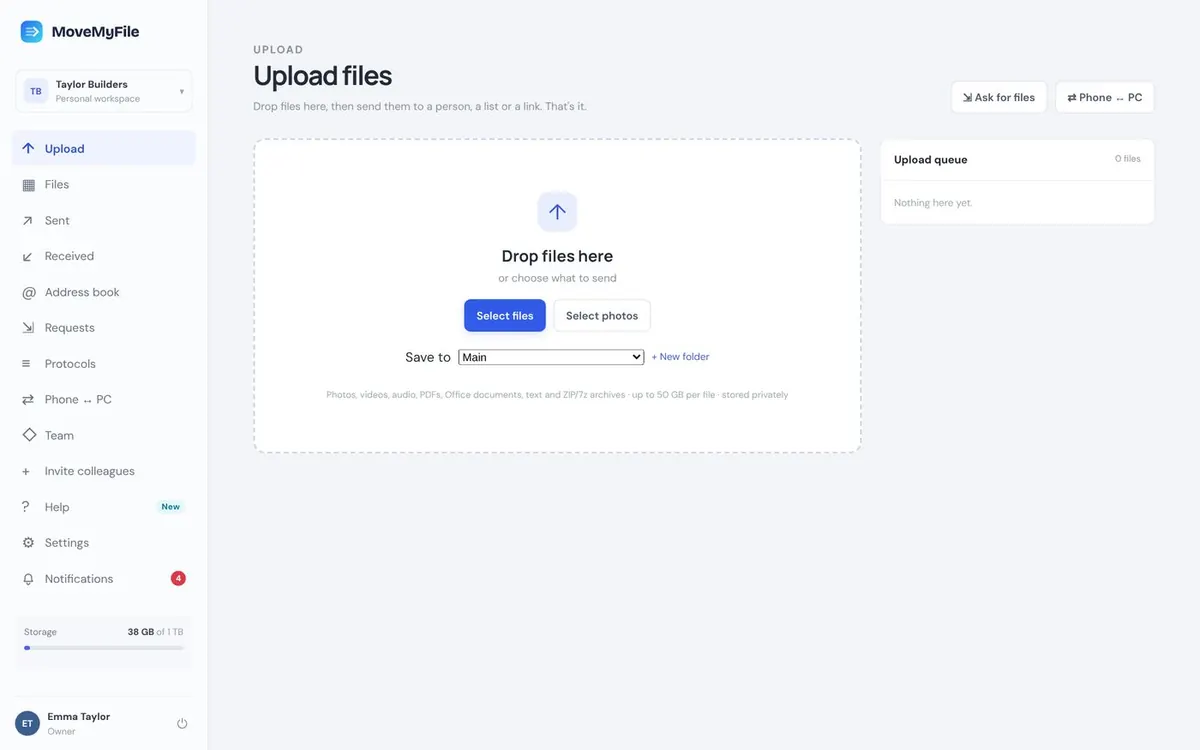
Click Upload on the left. Drag the files into the box or click Select files. Photos stay in full quality.
Picture guide
Send files to people, move them between your phone and computer, and get documents signed. Every step has one picture and a sentence or two. That is all you need.
On the computer
Click Upload on the left. Drag the files into the box or click Select files. Photos stay in full quality.
On the computer
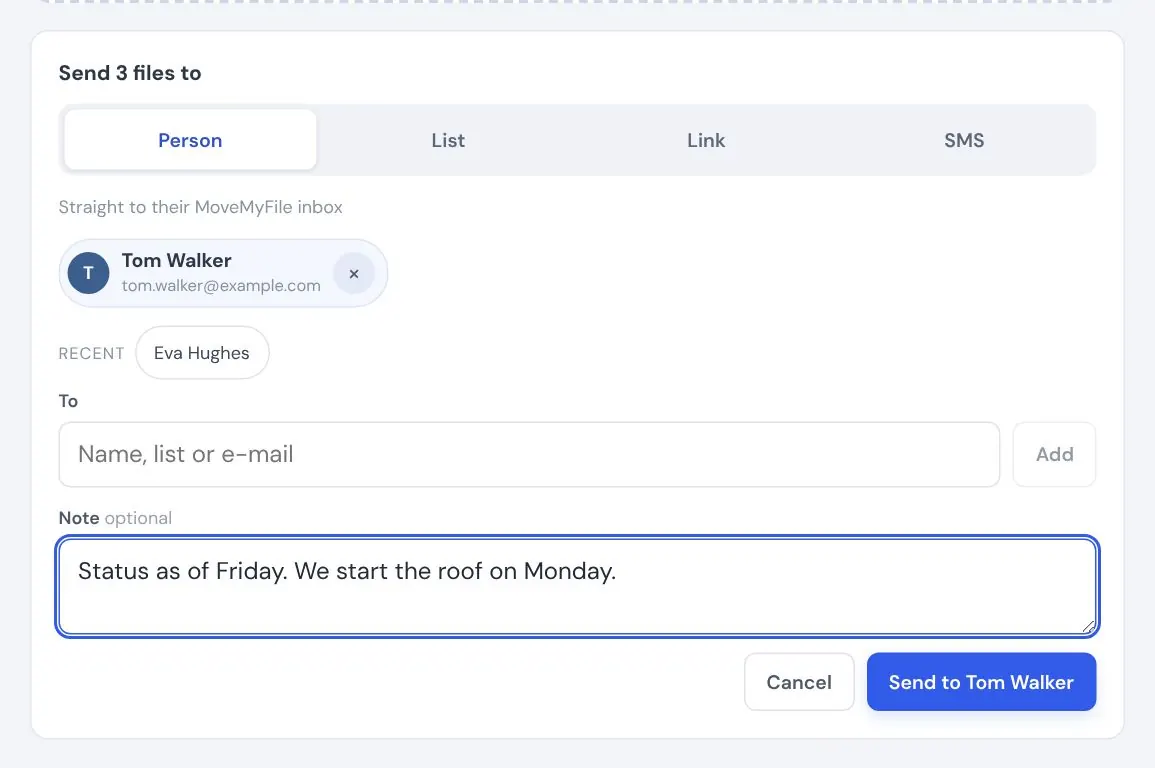
After the upload you see “Send to”. Under Person, start typing a name, e-mail or list in the To field and pick from the suggestions, or click a recent recipient. Add a note and click Send. They find the files under Received.
On the computer
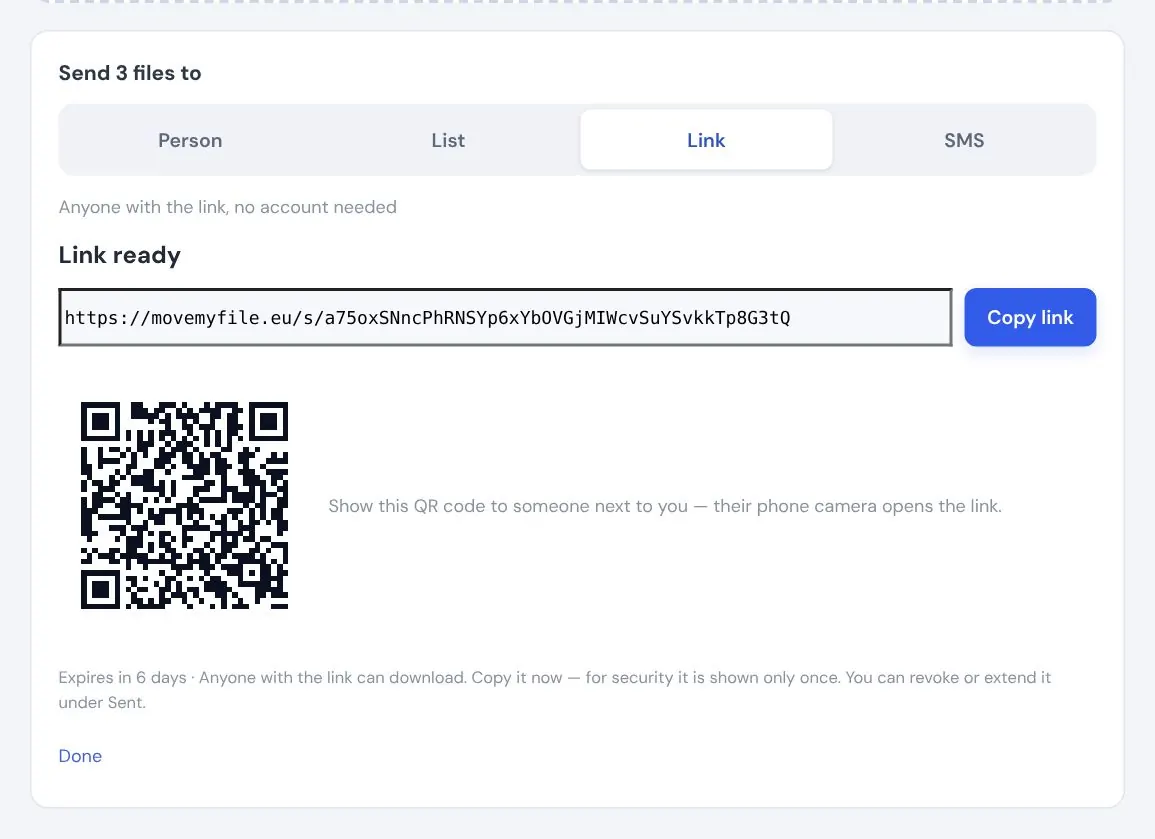
Under Link, click Create link. Send the link by e-mail or message, or show the QR code to someone next to you. The recipient needs no account.
On the computer
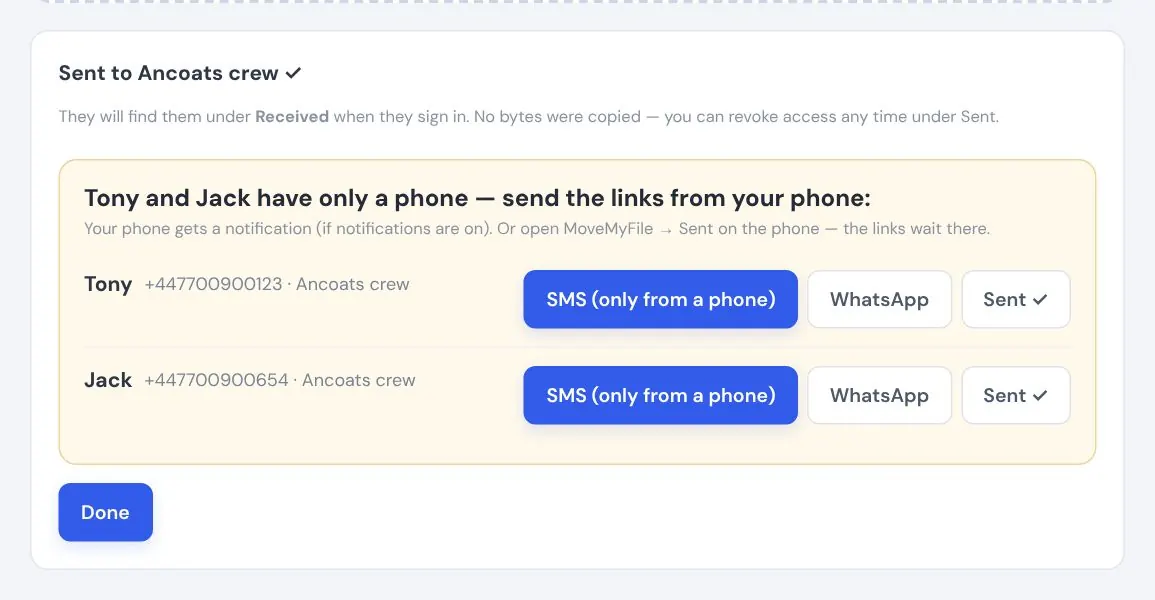
Under List, click a list and everyone on it gets the files. People with only a phone number get the link by SMS or WhatsApp from your own phone. The app reminds you.
On the phone
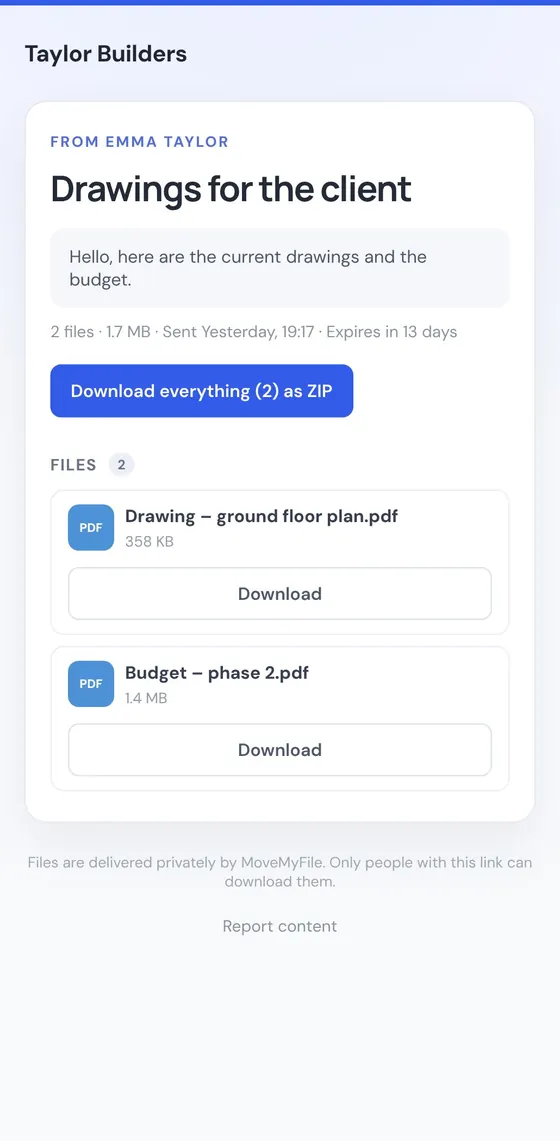
They open the link on a phone or computer and download the files. Nothing to install, no sign-up.
On the computer
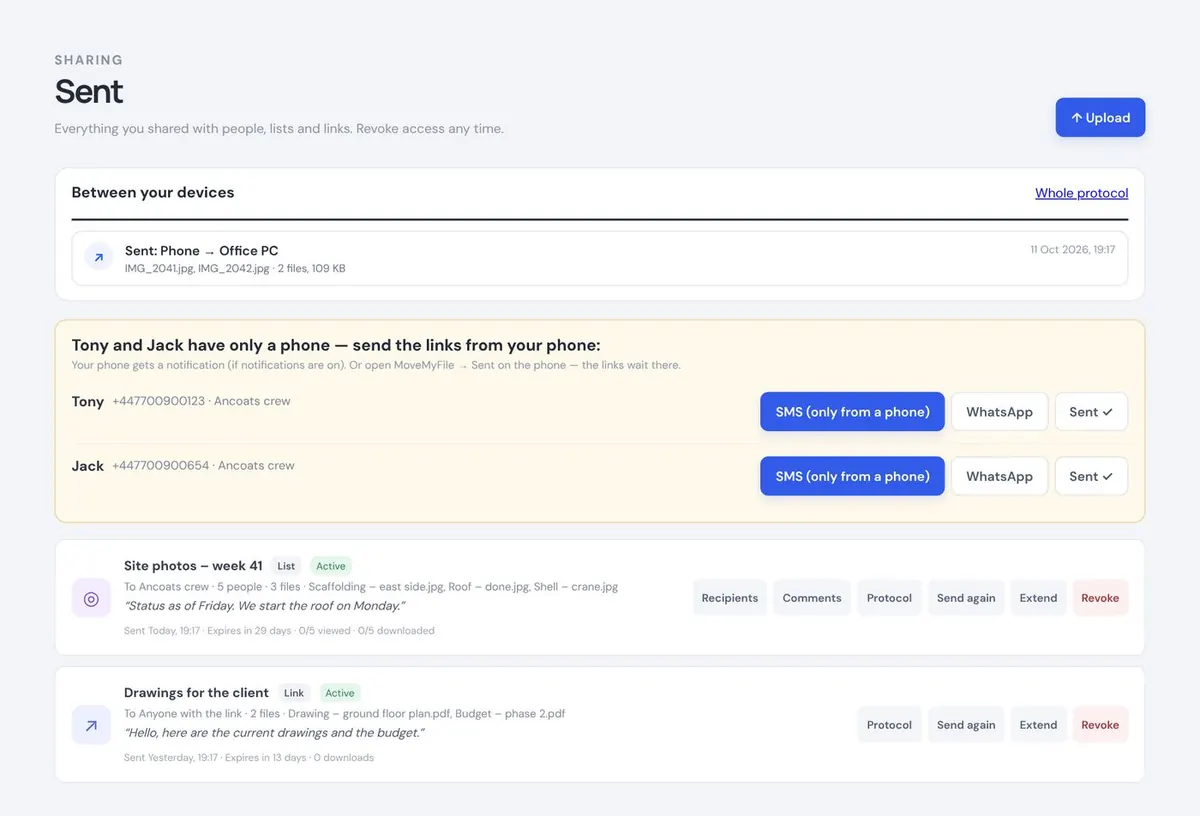
Everything you have sent. You see who opened and downloaded the files. You can extend a link or revoke it at any time.
On the computer
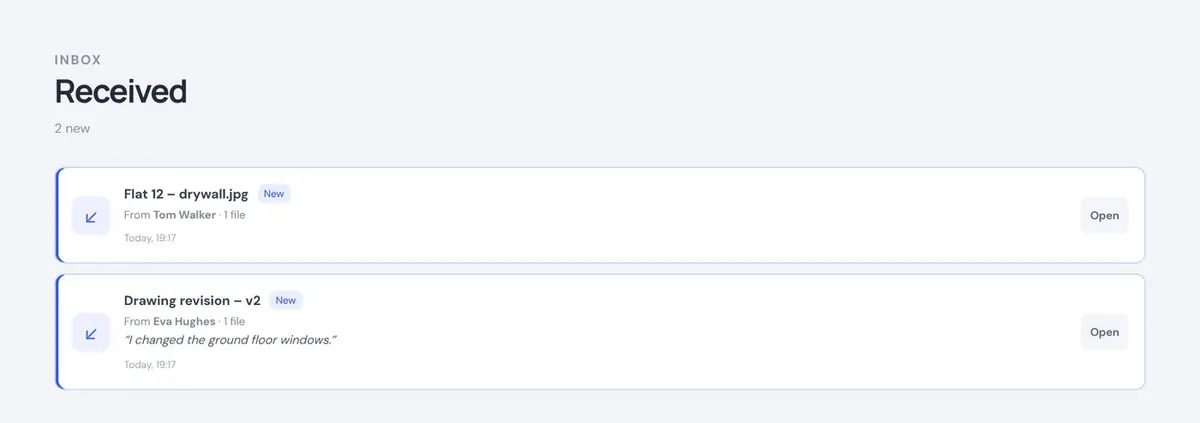
What other MoveMyFile users sent you. Click Open, then download the files or save them to your Files.
On the computer
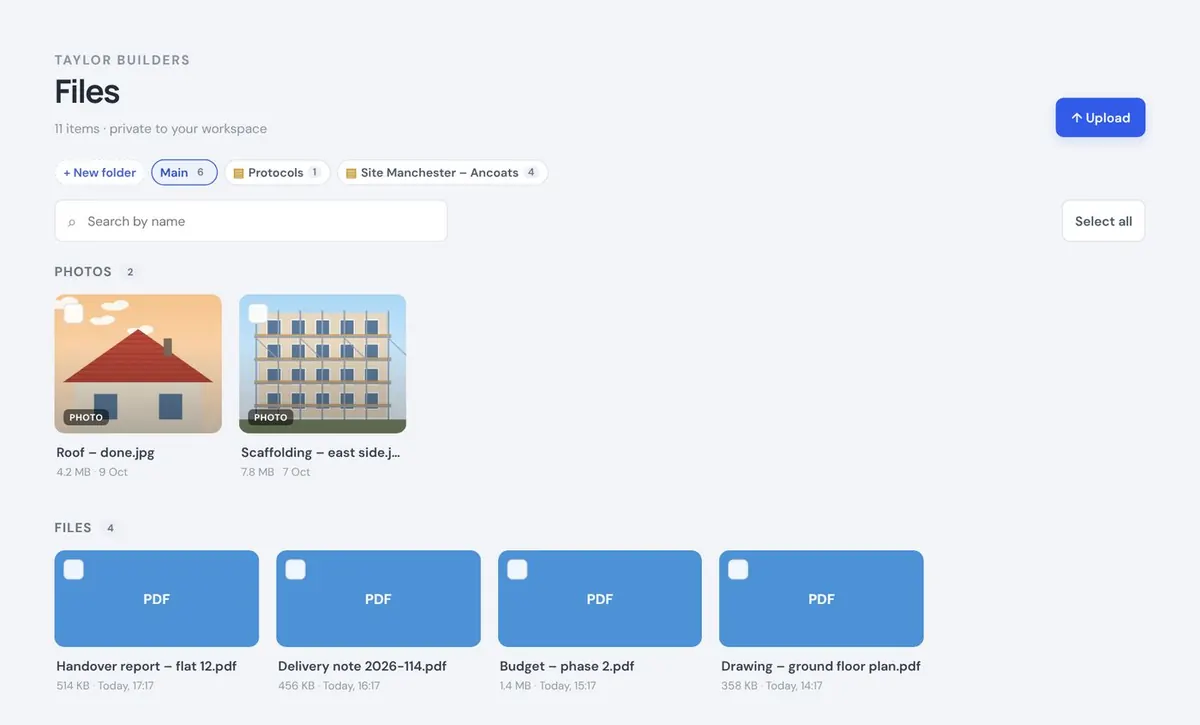
All your files in one place, photos and documents apart. Put them in folders, rename, download or delete them. On a computer, select several at once: click the first, hold Shift and click the last.
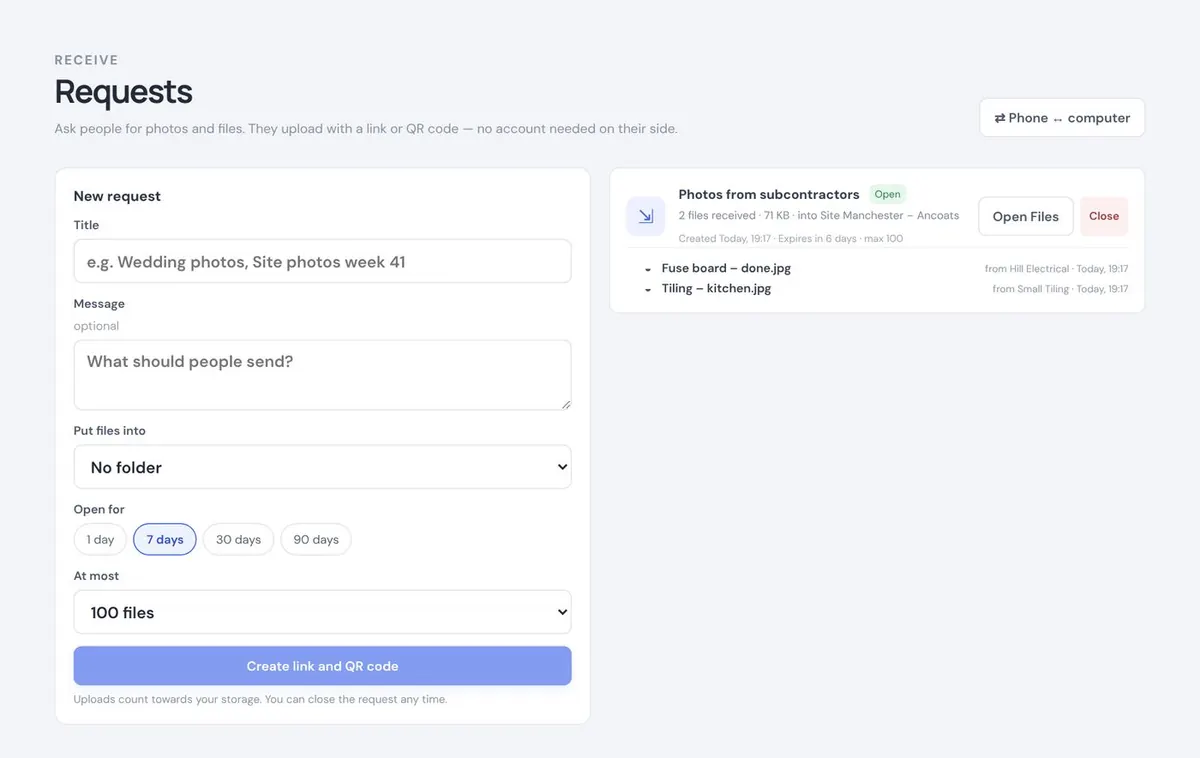
On the computer
Under Requests, type a name such as “Site photos” and click Create link and QR code. Send the link to the people you need files from.
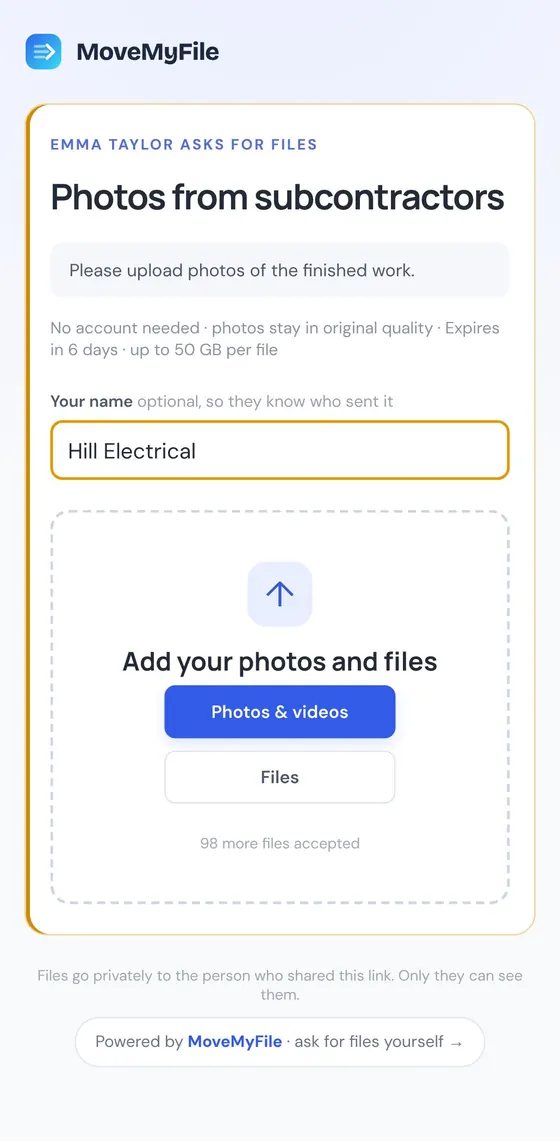
On the phone
They open the link, type their name and upload the photos, without an account. The files land straight in the folder you chose.
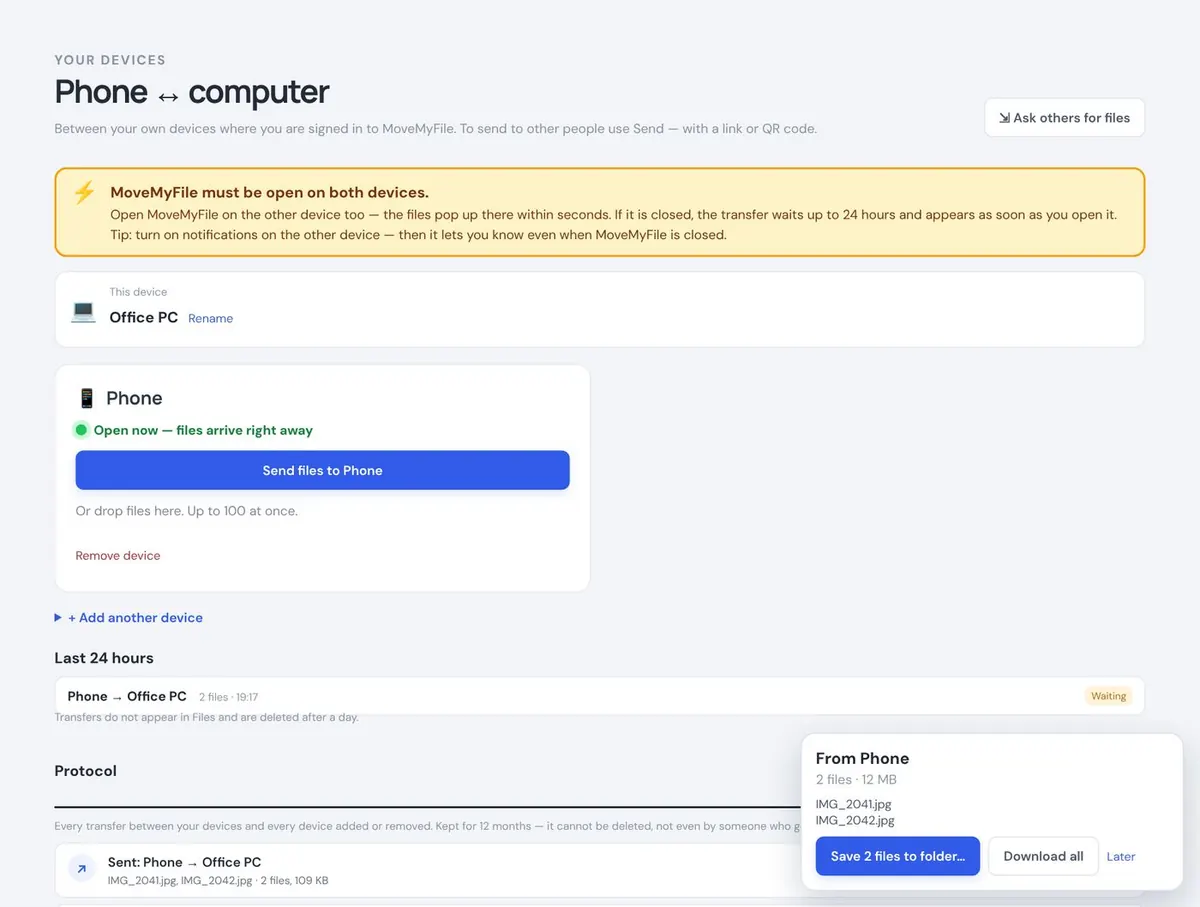
On the computer
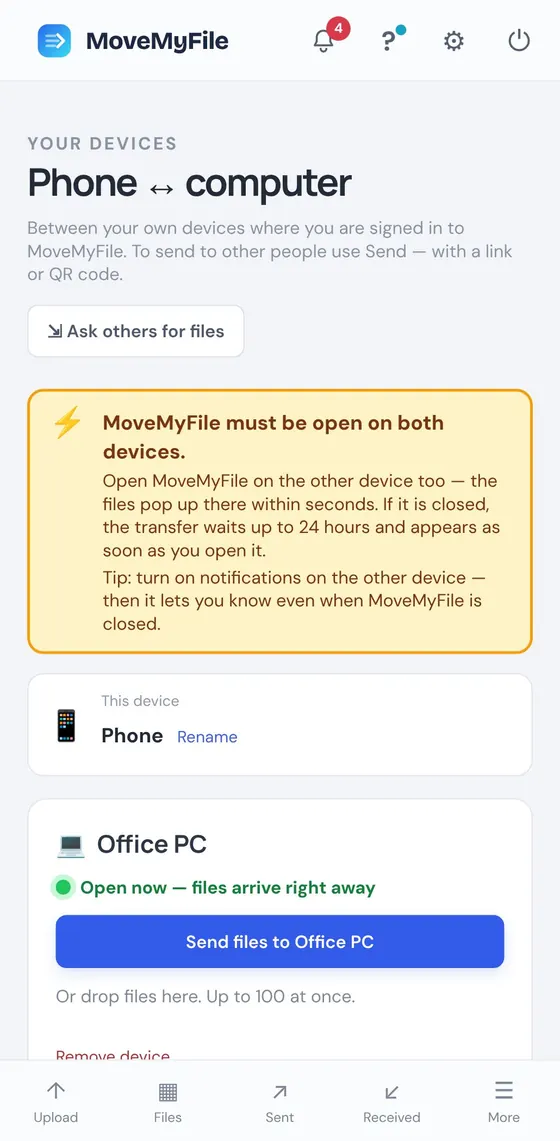
Keep MoveMyFile open on your phone and your computer. Under Phone ↔ PC, click Send files to the other device. The files pop up there within seconds.
On the phone
It works the same way on the phone: tap Send files to your computer. Transfers stay out of your Files and delete themselves after a day.
On the computer
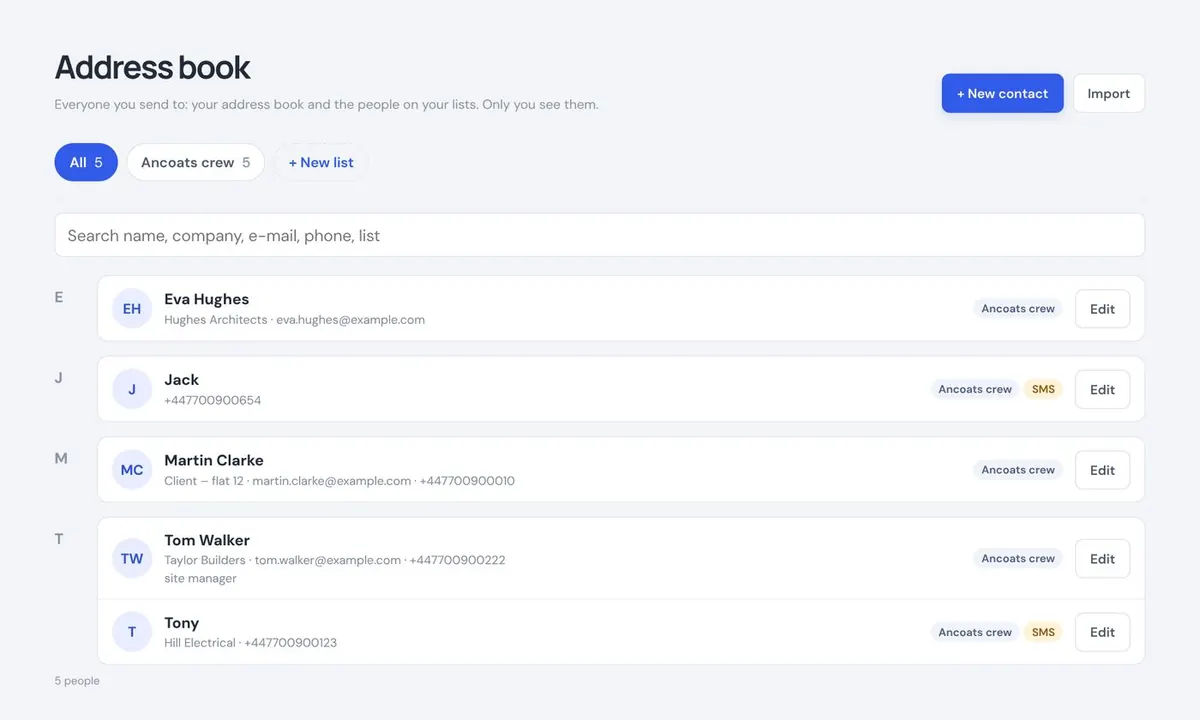
The Address book holds everyone you send to: your contacts and the people on your lists, A to Z. When you send or ask for a signature, the app suggests them as you type. You can also import contacts from CSV.
On the computer
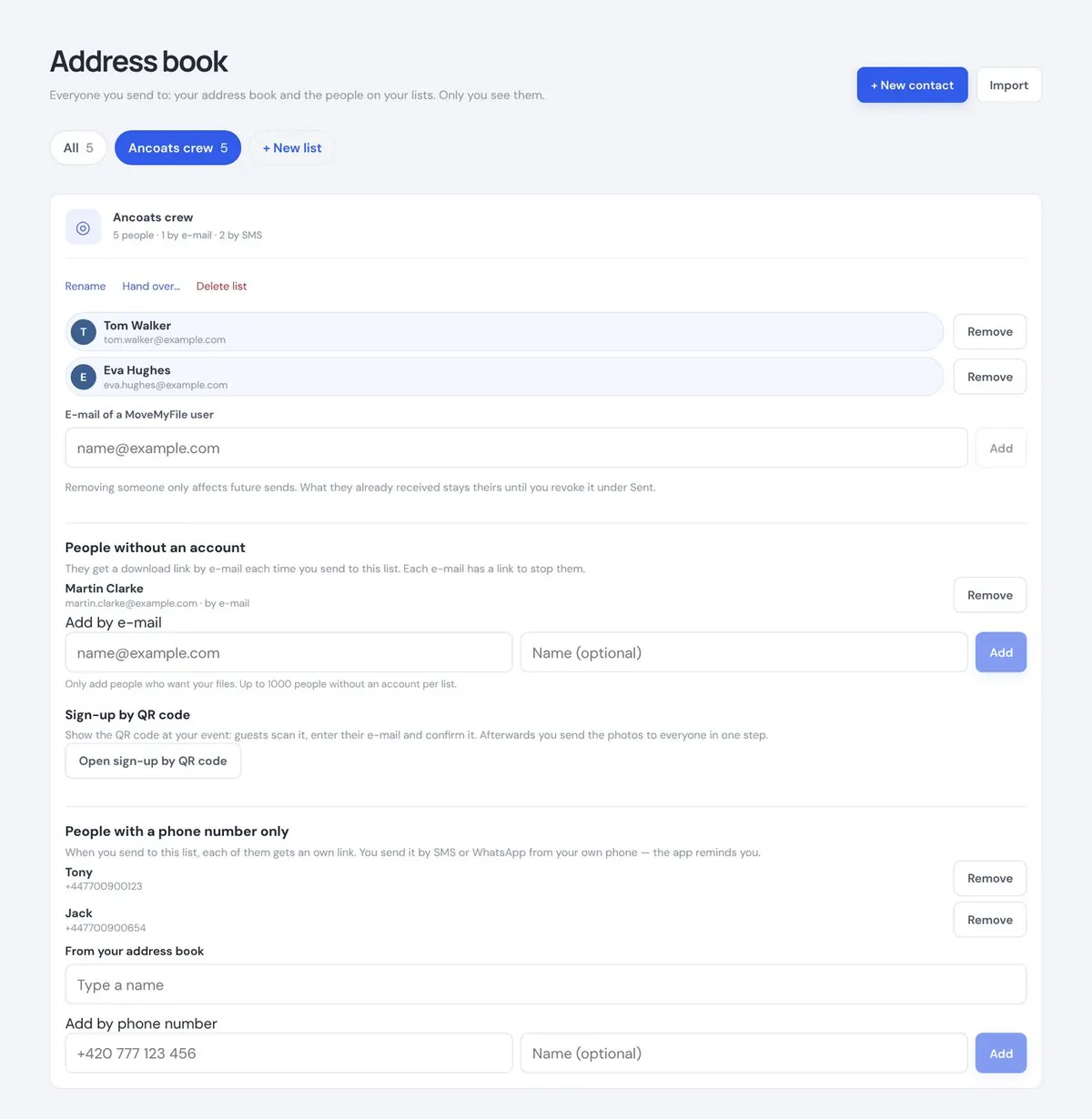
Your lists sit at the top of the Address book as chips. Click a list to see who is on it. Add MoveMyFile users, people with only an e-mail or only a phone number, or let them sign up with a QR code. Make a new one with + New list.
On the phone
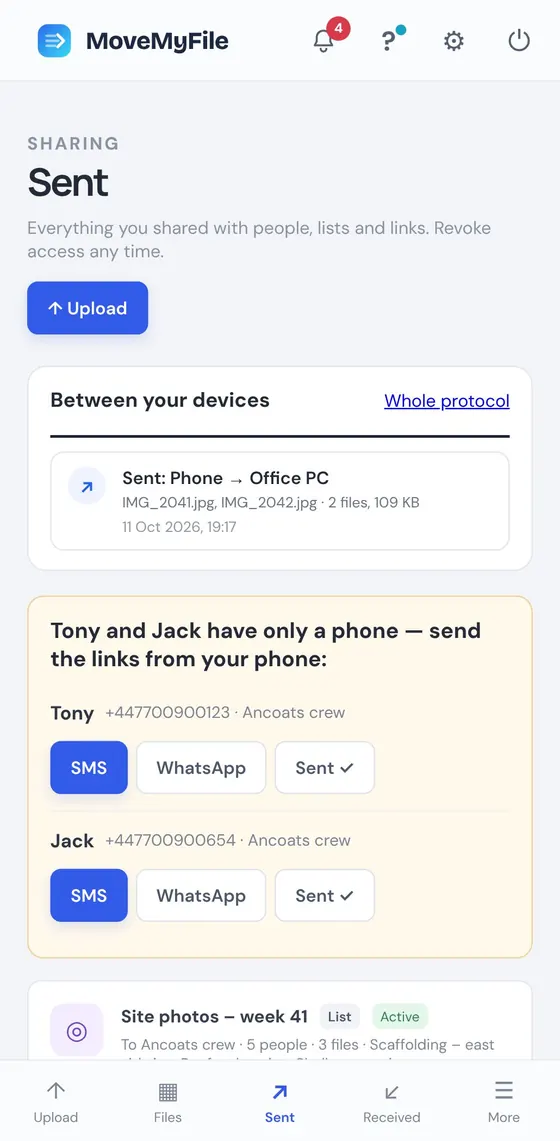
People with only a phone number wait under Sent. On your phone, tap SMS or WhatsApp and the message with the link is filled in. Then tap Sent ✓.
On the computer
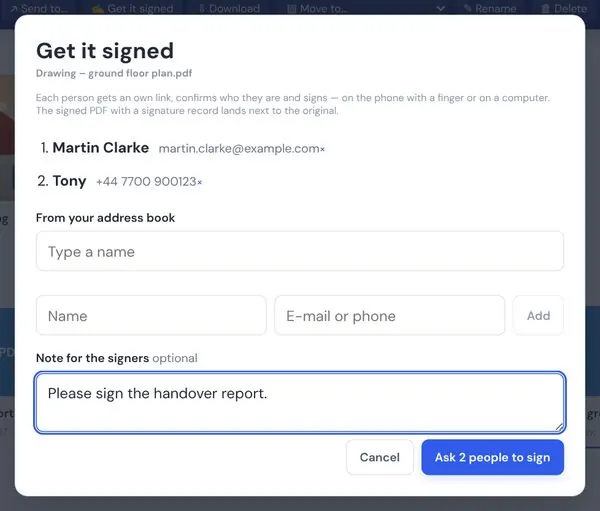
In Files, select one PDF and click Get it signed. Add people from your address book or type an e-mail or phone number, then click Ask to sign.
On the phone
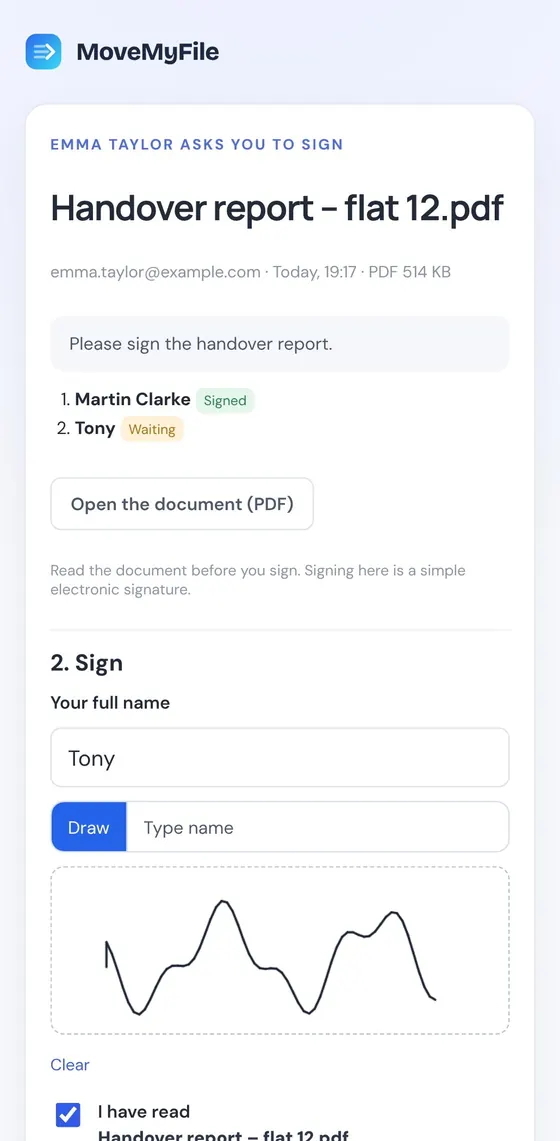
The signer opens the link, reads the document and signs with a finger or types their name. Someone who got the link by e-mail confirms with a code from that e-mail.
On the computer
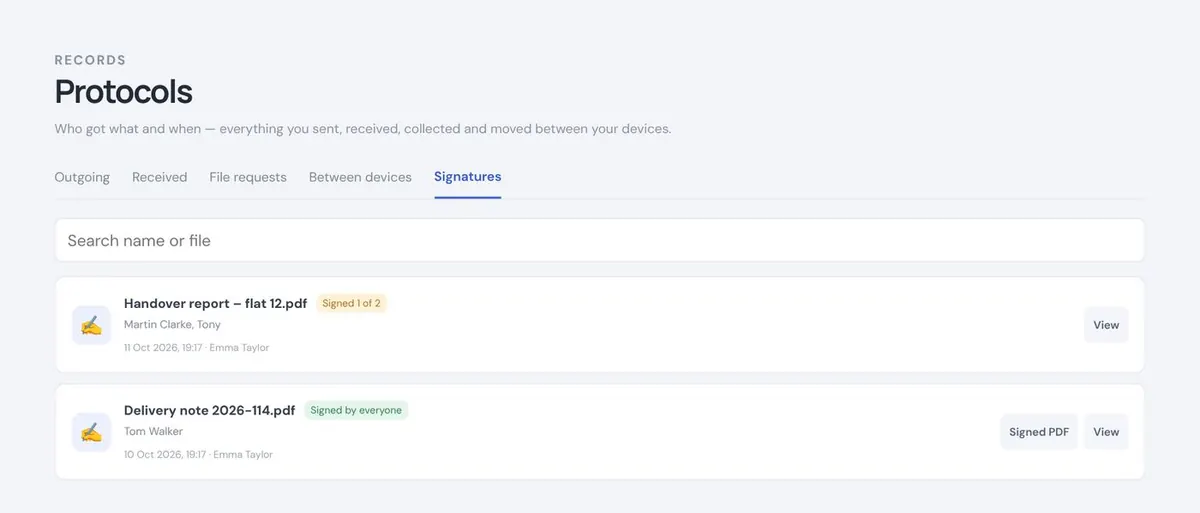
Under Protocols → Signatures you see the status for each person. When everyone has signed, the signed PDF with its signature record is saved next to the original.
On the computer
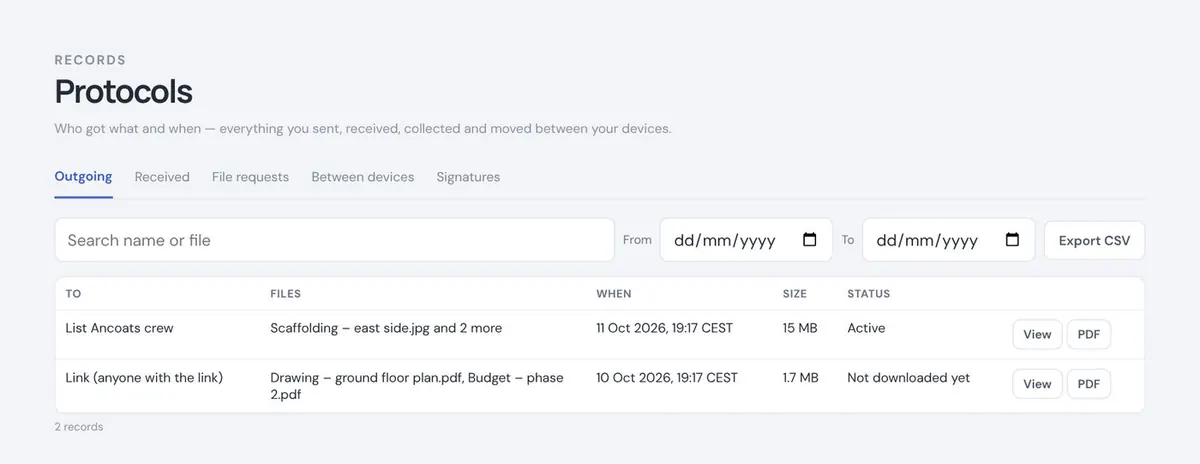
Who got what and when: sent, received, collected and moved between your devices. Search by name or file and export to CSV.
On the computer
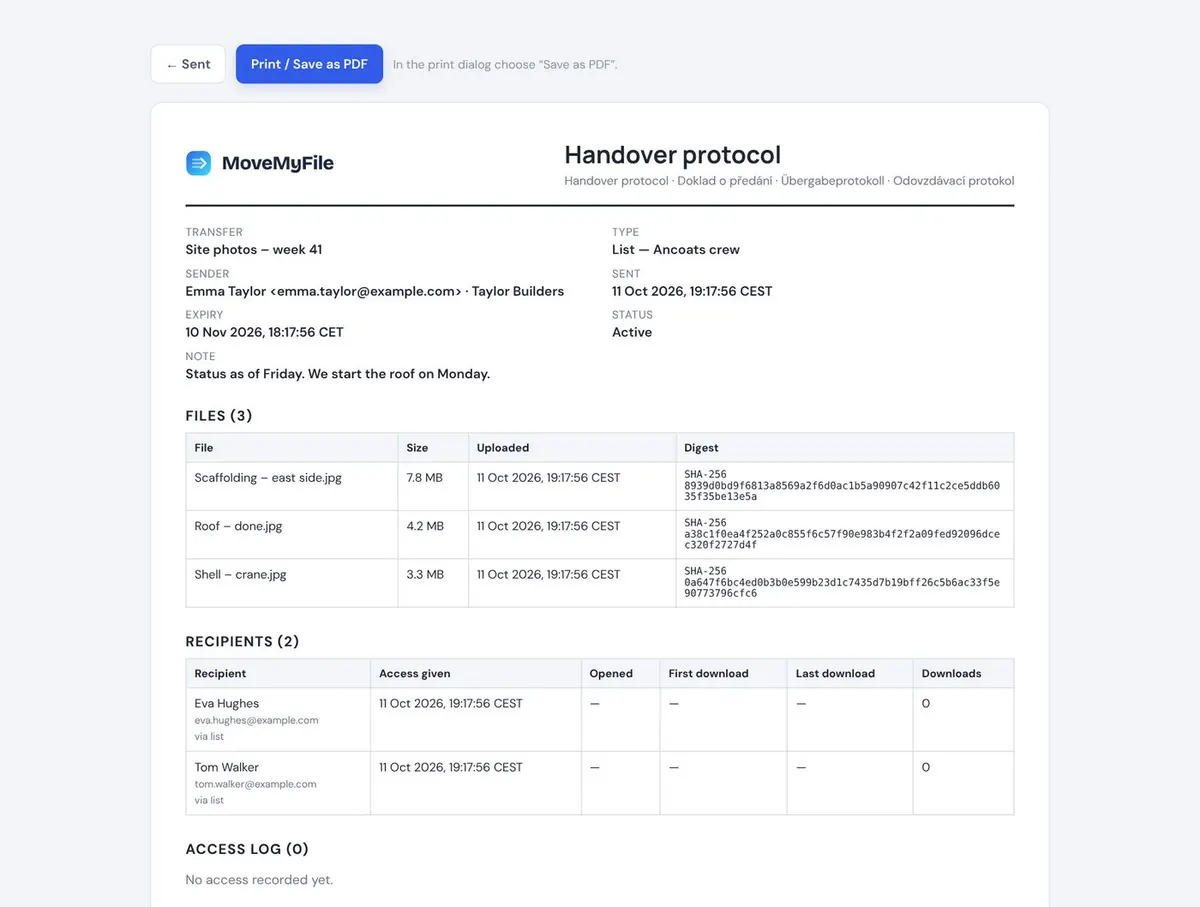
Open a protocol for each sending: the files, their SHA-256 fingerprint and who opened them when. Save it as a PDF.
On the computer
Create a team for your company or crew: shared files, one price for the whole group and a role for every member.

On the computer
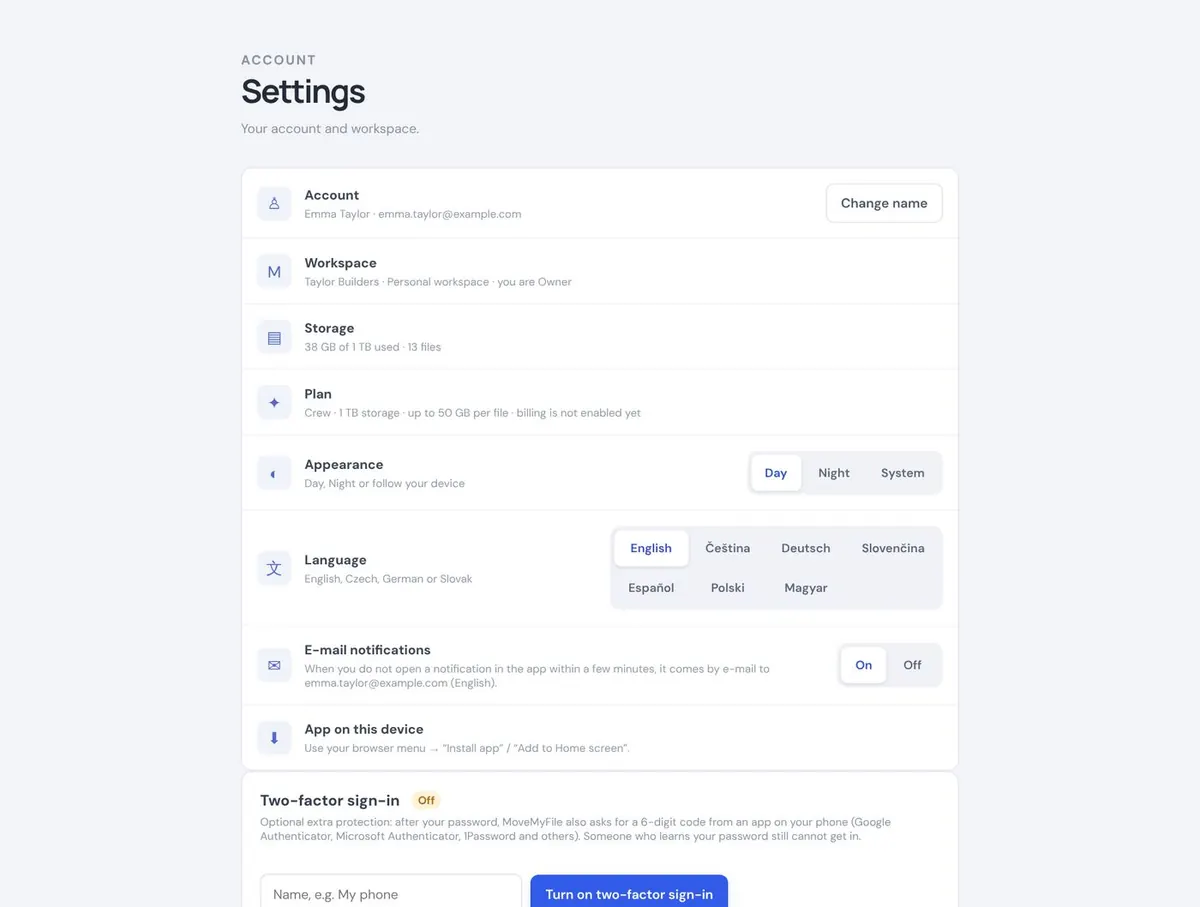
Language, light or dark look, e-mail notifications, the app on your device and two-step verification.